


- Using the Live Monitor function:
- Go to the Gateway page → Click the NeoFlow tab.
- Click Live Monitor → Click Monitor.
- Confirm the following status:
- Processor Status: Execution Success, indicating the Gateway is operating normally.
- OT Device and IT Service Status: Connection Success indicates normal communication.
- Basic Information:
- Connection completed: After completing the connection with NeoEdge.
- Manual update: The user manually performs the update.
- App Info
- After NeoFlow Sync is completed, update every 10 seconds for 1 minute.
- Scheduled updateUpdated once every 24 hours.
Yes, after completing Sync NeoFlow to Gateway, the Gateway will automatically retrieve data from the OT Device based on the NeoFlow settings and automatically transmit the data according to the IT Service configuration.
- OT Device Profile:
OT Device communication setting templates, including communication type, parameters, and data request parameters, can be quickly configured in NeoEdge Central and reused in NeoFlow. - IT Service Profile:
IT Service server connection configuration templates, including server type, parameters, and authentication CA files, can be quickly configured in NeoEdge Central and reused in NeoFlow.
It will not affect. The OT Device Profile and IT Service Profile are template settings. Edits in NeoFlow only apply to the current configuration and will not change the original Profile content.
- Possible causes:
- License insufficient: Your company NeoEdge X license count has reached the limit, and you cannot add more NeoFlow.
- Insufficient permissions: You need Application Management permissions to add NeoFlow to Gateway.
- Solution:
- Check NeoEdge X License Status:
- Log in to NeoEdge Central.
- Go to the Company Account page.
- Switch to the NeoEdge X License tab and check if the available license count has been exceeded.
- Handling insufficient license situations: Please contact your administrator to purchase more licenses or release unused licenses.
- Confirm operation authority
- Confirm that you have Application Management permissions.
- If you do not have this permission, please contact the administrator to grant the corresponding permission.
- Check NeoEdge X License Status:
- How to change Serial Port Interface (RS 232, RS 485), please refer toHow to configure a serial port interface
- How to change other Serial Port settings
- Log in to NeoEdge Central and go to the Gateway page.
- Open the Gateway Profile tab, then click the Gateway you wish to edit.
- Click Edit, adjust the Serial Port mount path, and set parameters (such as baud rate, data bits, stop bits) according to the OT device's protocol.
- Please refer to the IPC manual you are using to confirm the correct COM port path settings.
- Retry Sync operation after saving.
- Reason:
- The OT device's communication protocol is configured incorrectly.
- Gateway's serial port settings do not match device configuration.
- Solution:
- Check the protocol parameters of the OT device (e.g., baud rate, data bits, stop bits, Slave ID).
- Log in to NeoEdge Central, navigate to the Gateway Profile tab, and check if the Serial Port Connection Setting is correct.
- After confirming the configuration is consistent, save and try to retrieve the data again.
- NeoFlow
- Support structure:
- x86-64
- arm64
- Supported operating systems:
- Ubuntu 20.04 x86-64
- Ubuntu 22.04 x86-64
- Debian 11 AArch64
- Support structure:
- Remote Desktop Service
- Support structure:
- x86-64
- Supported operating systems:
- Ubuntu 22.04 LTS Desktop OS
- Windows 10/11 OS
- Windows Server 2022
- Solution: Remote Desktop Services
- Support structure:
The operating systems listed above have been fully tested and compatibility is ensured.
If you need to install other versions of the operating system, it is recommended to contact our technical team first to confirm compatibility and potential risks, so as to avoid abnormal system operation.
- Solution:
- Download and install Azure IoT Explorer.
- Sign in with your Azure account and connect to the corresponding IoT Hub.
- Browse the device list and select the target device.
- Check the Telemetry data stream to confirm if data was uploaded successfully.
- Reason:
- Insufficient administrator privileges: Installing Command must be performed as a user with sudo privileges.
- Command Expired: Commands are only valid for 24 hours after generation and will not be usable once expired.
- Device Offline: The device cannot connect to the external network, causing the installation to fail.
- NeoEdge X version and hardware or operating system mismatch: When adding a Gateway, the selected OS version does not match the device's actual hardware architecture or operating system.
- Solution:
- Acquire administrator privileges:
- If the error message "user is not in the sudoers file. This incident will be reported." appears, it means the current user cannot execute sudo.
- Contact the system administrator for permissions, or try again with an account that has sudo privileges.
- Check equipment network connection:
- Ensure the device is enabled and the network configuration is correct. On the device, perform a ping to google.com to confirm normal access to the external network.
- Check Command Status:
- Confirm the Command was generated within 24 hours and has not been reused.
- Regenerate Command:
- If the Command has expired, please regenerate a new Command in NeoEdge Central and try installing again.
- Check hardware and OS support:
- Confirm that the OS Version selected for the new Gateway matches the actual device. If they do not match, adjust the device or reconfigure the Gateway.
- Acquire administrator privileges:
- Reason:The device is not properly connected to the network, or the necessary communication ports are not enabled.
- Solution:
- Check network connection:
- On the device, execute ping google.com to confirm normal access to the external network.
- Check port status:
- Ensure that ports 443 and 8883 are open for external connections on the device. Run the following command to verify the port status:
- echo | openssl s_client -connect mqtt.neoedgecentral.com:8883 2>/dev/null | openssl x509 -text
- echo | openssl s_client -connect pic.neoedgecentral.com:443 2>/dev/null | openssl x509 -text
- Ensure that ports 443 and 8883 are open for external connections on the device. Run the following command to verify the port status:
- Check network connection:
If you are unable to connect, check your firewall settings or contact your network administrator for assistance.
- Not supported at the momentThe same Gateway cannot be assigned to multiple projects simultaneously.
- If you need to move the Gateway to another project, follow these steps:
- Remove Gateway from the original project:
- Log in to NeoEdge Central and navigate to the original project that the Gateway belongs to.
- Confirm Gateway has completed data processing and safely remove Gateway.
- Reconfigure Gateway in New Project:
- Switch to the target project, add the Gateway, and re-complete the configuration and installation process.
- Remove Gateway from the original project:
Important reminder:
Deleting and reassigning projects are irreversible operations. Data within the project cannot be recovered. Therefore, before proceeding with deletion, please thoroughly review the project's contents and ensure you have backed up all necessary data.
- Reason:To meet information security requirements, RDP connections are not automatically enabled by default on the Gateway. Therefore, the inability to connect to RDP after a Gateway reboot or recovery is by design to comply with security.
- Solution
- Close RDP tab.
- Re-enable RDP services to restore connectivity.
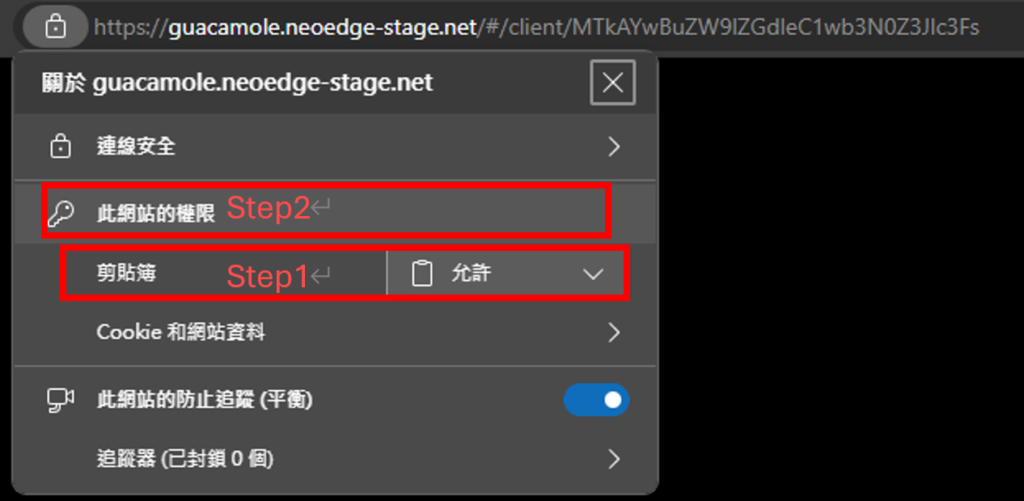
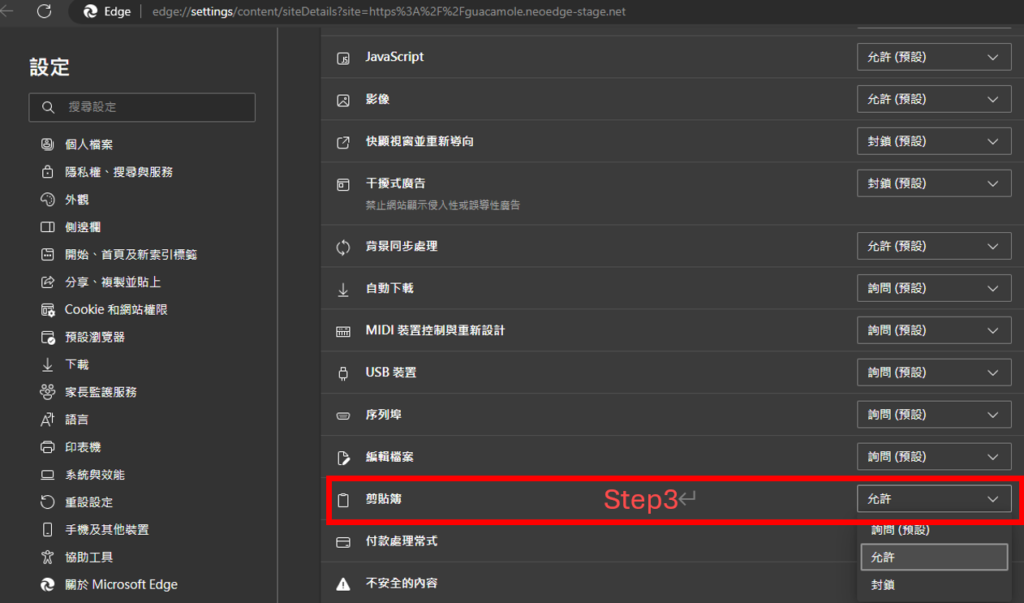
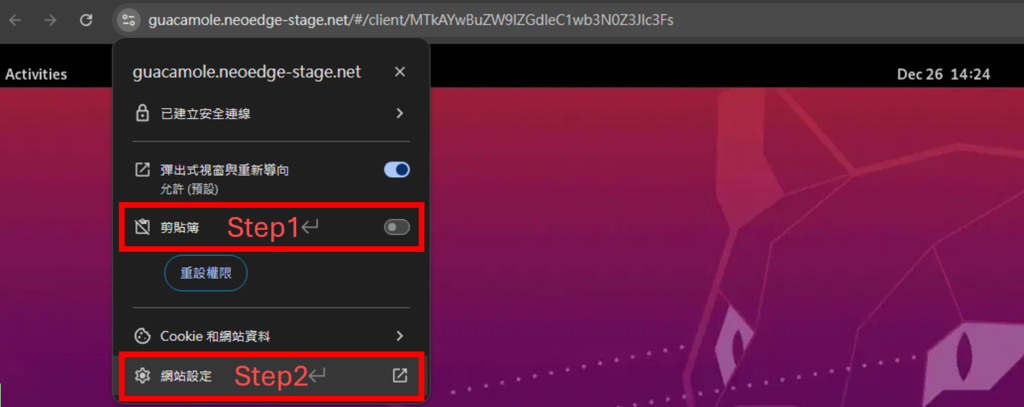
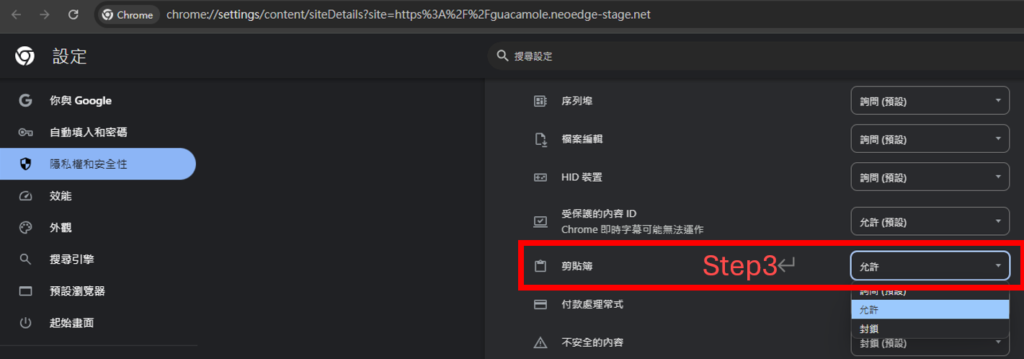
- Reason:This is usually because the browser's clipboard function is turned off. The clipboard is the function used to handle copy and paste operations. Once it's turned off, these operations naturally become unusable.
- SolutionOpen the browser's clipboard functionality:
- Here are common browser solutions:
- Chrome browserClick Settings to the left of the RDP URL
- Step 1: If the clipboard option is enabled
- Step 2: If there is no clipboard option, go to ”Site Settings”
- Step 3: Enable the clipboard option ”Allow.”
- Chrome browserClick Settings to the left of the RDP URL
- Here are common browser solutions:
- Microsoft EdgeClick Settings to the left of the RDP URL
- Step 1: If there are clipboard options, allow them.
- Step 2: If there is no clipboard option, go to ”Site permissions”.”
- Step 3: Enable the clipboard option ”Allow.”